Call layout
You can switch between grid view and speaker view using the toggle icon in the three-dot menu or the bottom bar.
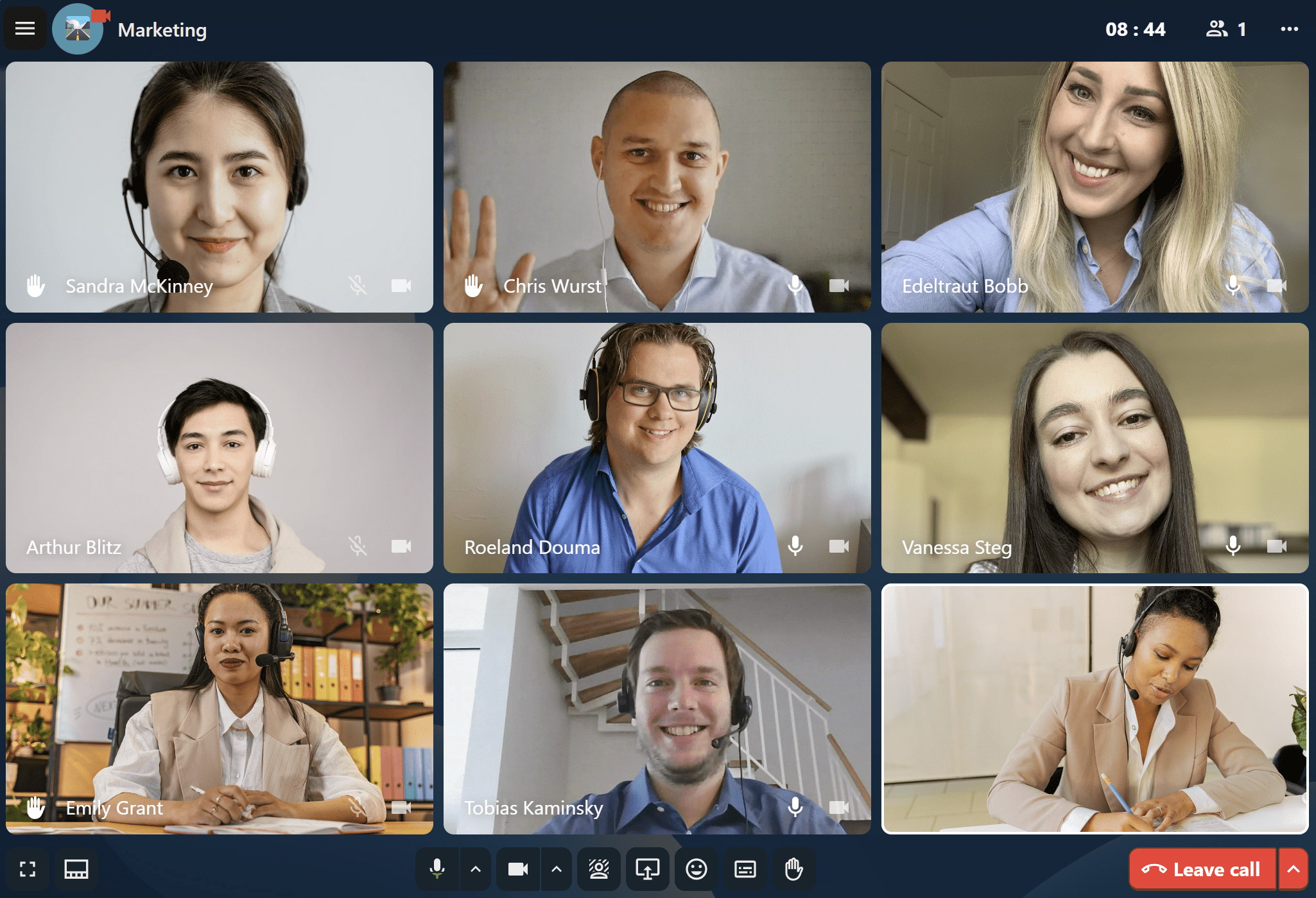
Grid view
Grid view shows all participants as tiles. Use the navigation buttons on the left and right to scroll through participants when they do not all fit on the screen.
Speaker view
Speaker view (also called promoted view) centres the active speaker in a large tile and places the other participants in a row below. Use the navigation buttons on the left and right to scroll through participants when the row overflows.